

Part of XPC Portal
XPC Advanced Protection.
A few simple switches in XPC Portal that close the obvious escape routes while XPC is on — and put everything back exactly as it was when XPC is off.
In XPC Portal
One switch. Then tick what you want.
Turn on Advanced Protection for a configuration, and choose the individual controls. The recommended ones are ticked for you.
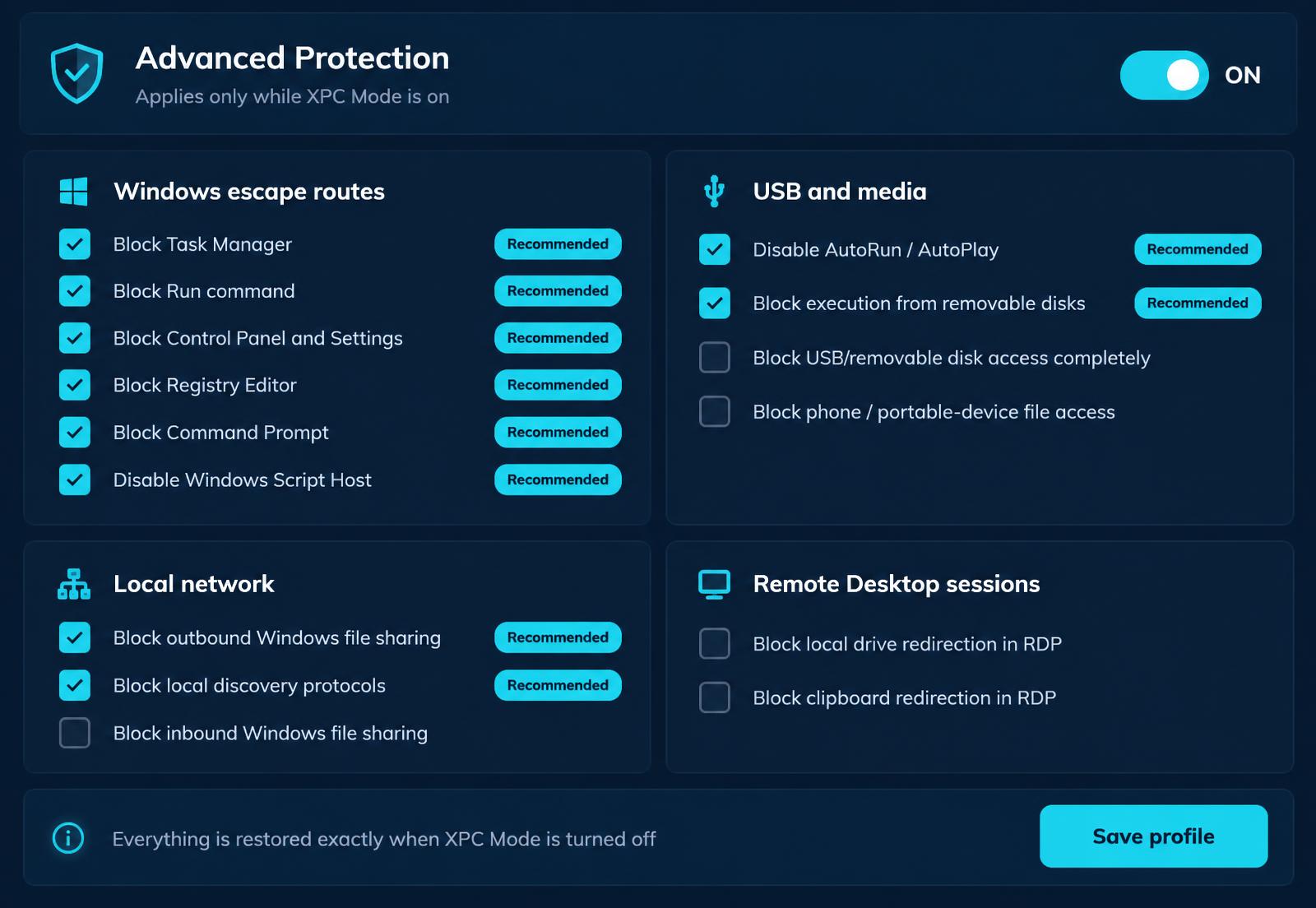
What you can switch on
Close the obvious doors.
Four groups of simple controls. Each one applies only while XPC Mode is on.
Windows escape routes
Stop users wandering out of XPC and into the parts of Windows they do not need.
- Block Task ManagerRecommended
- Block the Run commandRecommended
- Block Control Panel and SettingsRecommended
- Block Registry EditorRecommended
- Block Command PromptRecommended
- Disable Windows Script HostRecommended
- Block a small list of shell and admin toolsRecommended
USB and media
Keep attached drives and phones from becoming a way in — as strictly as the site needs.
- Turn off AutoRun / AutoPlayRecommended
- Stop programs running from USB drivesRecommended
- Block USB drives completelyOptional
- Block access to phone filesOptional
Local network
Make it harder to move from one PC to the next across the office network.
- Stop browsing file shares on other PCsRecommended
- Stop local network discoveryRecommended
- Block incoming file sharingOptional
Remote Desktop sessions
Optional controls for Remote Desktop sessions that XPC itself launches.
- Stop local drives passing into the sessionOptional
- Stop the clipboard passing into the sessionOptional
Simple by design
No new infrastructure. No new console.
Runs on the PC itself
No Intune, MDM or Group Policy needed. The settings are applied locally by XPC.
One tick box per setting
Turn on the master switch, then pick exactly the controls you want. Sensible ones are ticked by default.
Scoped to the XPC user
Wherever Windows allows it, restrictions apply to the XPC user only — not the whole machine.
Reversible. Exactly.
Turn XPC Mode off and every setting goes back to exactly what it was before — not a guessed default. Closing the XPC screen does not switch protection off; XPC simply restarts. Only an authorised administrator can turn it off, from the portal.
Works alongside your tools.
Your RMM, patching and security agents — Atera, Action1, ThreatLocker and the rest — keep running normally. If ThreatLocker is installed, it stays in charge of application control. Advanced Protection does not try to duplicate it.
How we recommend securing the Windows underneathBeing clear
What it is not.
Advanced Protection is useful, practical hardening. It is not application control, and it does not replace EDR or antivirus, BitLocker, patching or a dedicated security product. Think of it as closing the obvious doors, quickly and reversibly, while XPC is on.
FAQ