Branch and remote offices
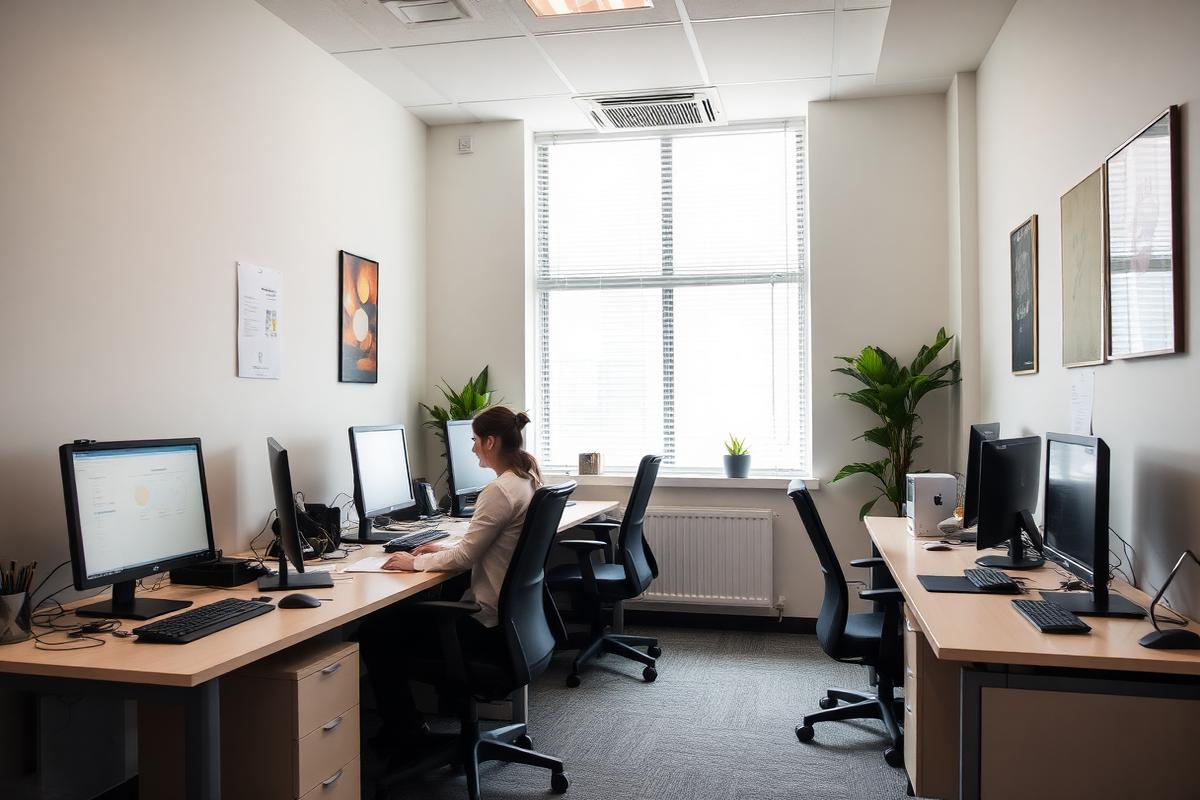
Sites with no IT staff, run from head office.
Branch machines are the hardest to reach and the easiest to break. XPC makes them predictable: one screen, defined centrally, with nothing local for a user to change.
The short answer
How do you manage branch office PCs without local IT staff?
XPC gives each branch PC a central configuration in the XPC Cloud Portal that defines exactly what the machine presents. Staff at the site see only the published sessions, so the common causes of branch support calls — stray applications, altered settings, local files — disappear. Windows remains in place, so head office keeps using the same RMM and remote support tooling to reach the machine.
Central
Configuration
Change what a site presents from the XPC Cloud Portal.
Same RMM
Remote support
Windows stays, so your support tooling still reaches the PC.
3
Steps to deploy
Log in to the XPC Cloud Portal, install the MSI, enable XPC Mode.
Nothing local to go wrong
The endpoint's job is to present a session. With no desktop exposed, there is no place for the small, cumulative changes that turn a branch PC into a support ticket.
Ship a PC, not a project
Bringing a new site online means installing the MSI on a standard Windows PC and enabling XPC Mode from the portal. No specialist build, no imaging appliance, no on-site engineer.
- Standard Windows PCs, any vendor
- Configuration applied centrally on first connect
- No on-site imaging step
- Reversible from the portal at any time
Clear messaging when the link drops
Branch connectivity is variable. XPC shows a branded, plain-language screen when a session cannot be reached, rather than dropping a non-technical user onto a Windows desktop.
At the desk
What the user actually sees.
- A branded company screen when the PC starts
- The sessions published to that site
- A clear message if the network is unavailable
- No desktop, settings or local applications
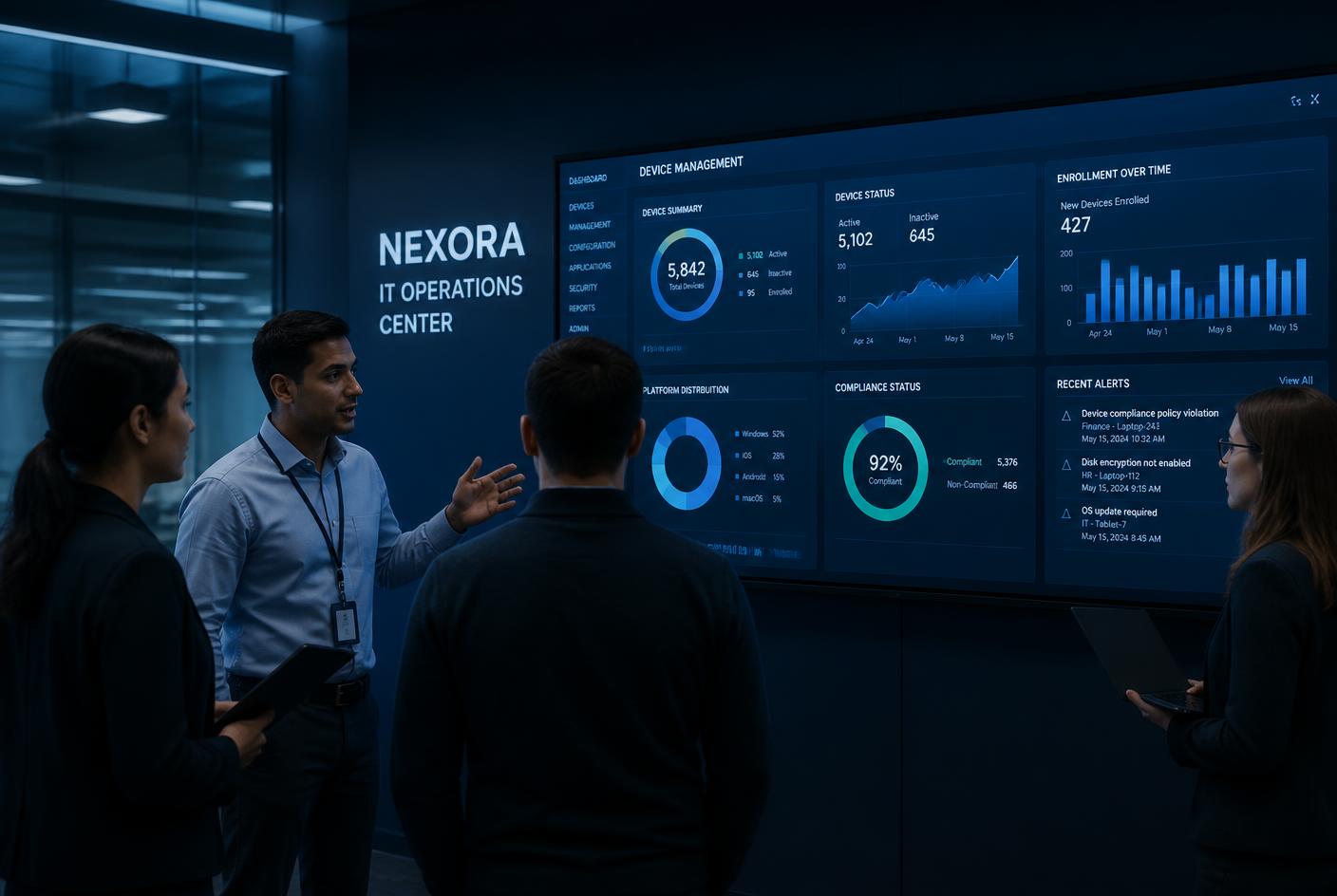
Branch offices
Predictable endpoints at every site.
Define the experience once at head office and let every branch machine present it identically.
Questions we are asked
Straight answers.
Can we still remote into the machine to support it?
Yes. Windows continues to run, so your existing RMM and remote support tools reach the endpoint as they do today.
What hardware do we need at the branch?
Whatever Windows PCs the site already has. XPC is software; there is no dedicated thin-client hardware to buy.
How do we roll back a site?
Disable XPC Mode for those PCs in the XPC Cloud Portal and they return to a standard Windows desktop.
Elsewhere
Other industries using XPC.
Schools and education
Lock classroom and lab PCs to the learning tools students actually need, and get more years out of the hardware already in the room.
Read moreUniversities and colleges
Open-access labs, libraries and faculty PCs delivered as focused endpoints — with semester turnaround handled centrally.
Read moreCall centres
Hot-desked agent PCs that present the agent desktop and nothing else, with headsets and soft-phones still working.
Read moreRetail and POS
Counter and back-office terminals that show the till or store application only — with printers and scanners still attached.
Read moreHealthcare
Shared clinical workstations that present the clinical system only, with fast switching between staff.
Read moreFinancial services
Controlled desktops for regulated environments, without replacing the Windows endpoint your controls are built on.
Read moreThin-client simplicity, without leaving Windows.
Five PCs are free forever. Log in to the XPC Cloud Portal, install the MSI, enable XPC Mode.